Give Your Eyes a Break with Manager Portal Dark Mode
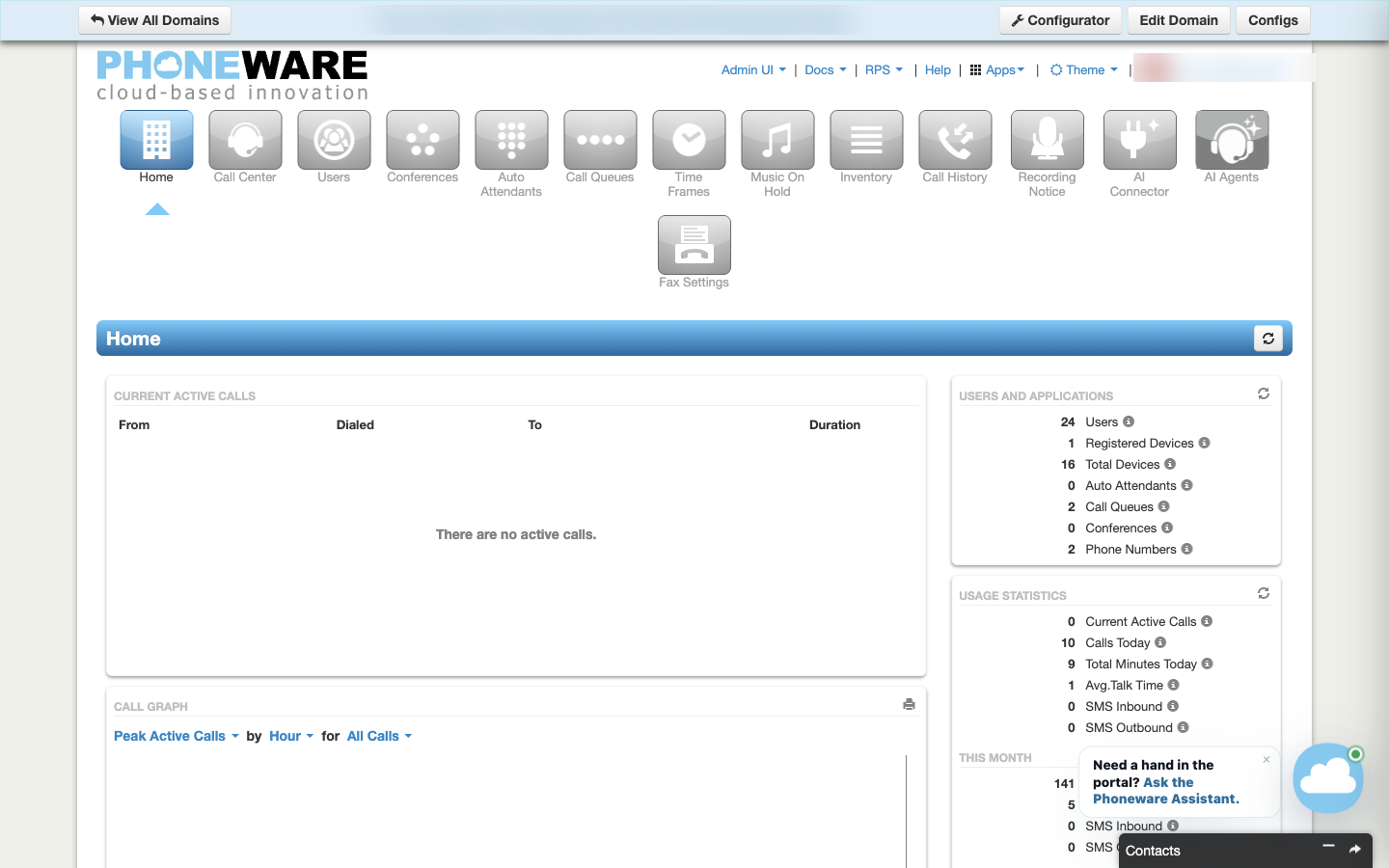
If you manage call routing or check queues late in the day, a bright white browser screen is hard on the eyes. Until now, the Manager Portal only had one look: bright white backgrounds across every page.
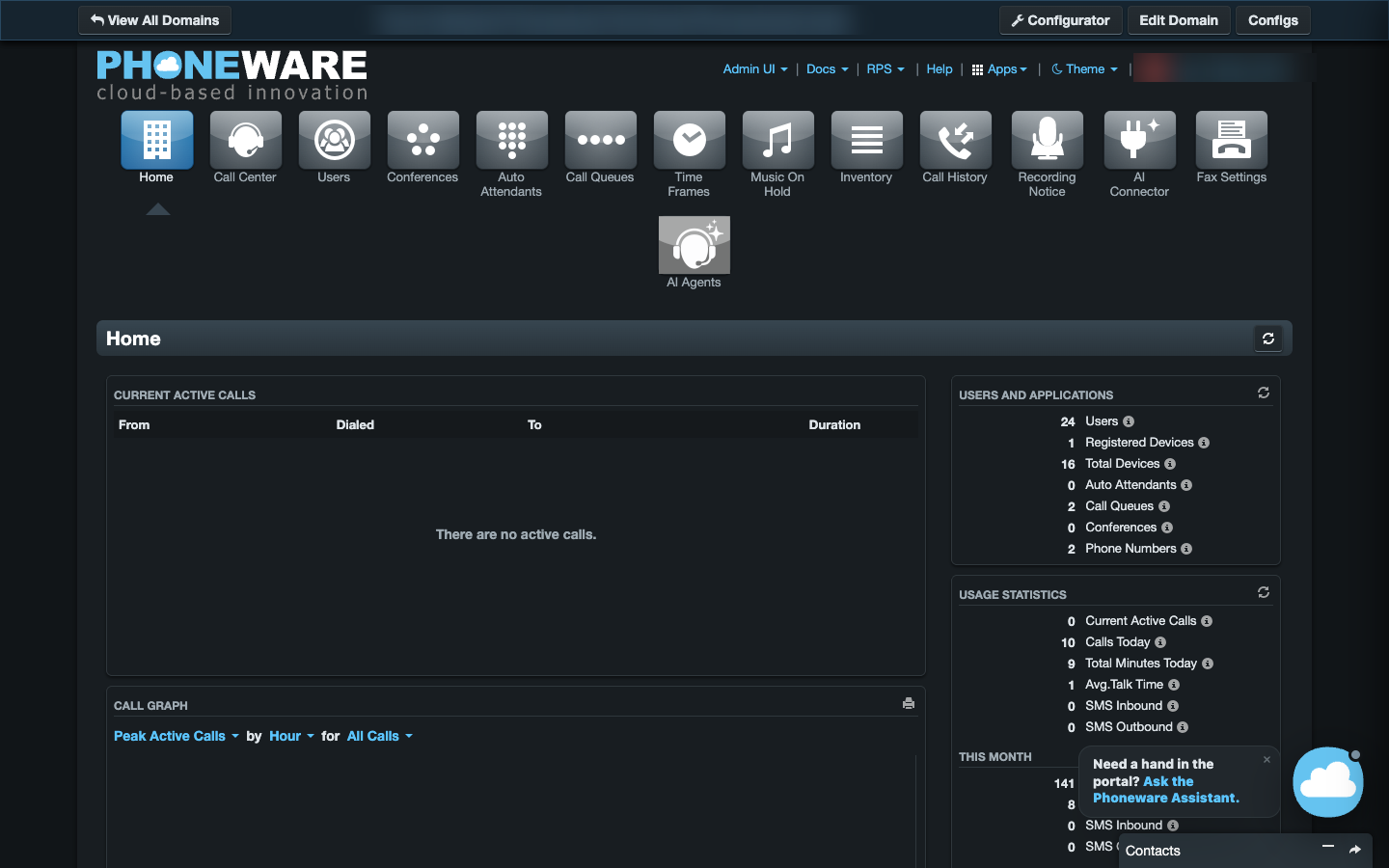
Dark mode adds a dedicated dark theme to the Manager Portal. You switch it right from the top toolbar, and the portal adapts instantly.
Where to find it
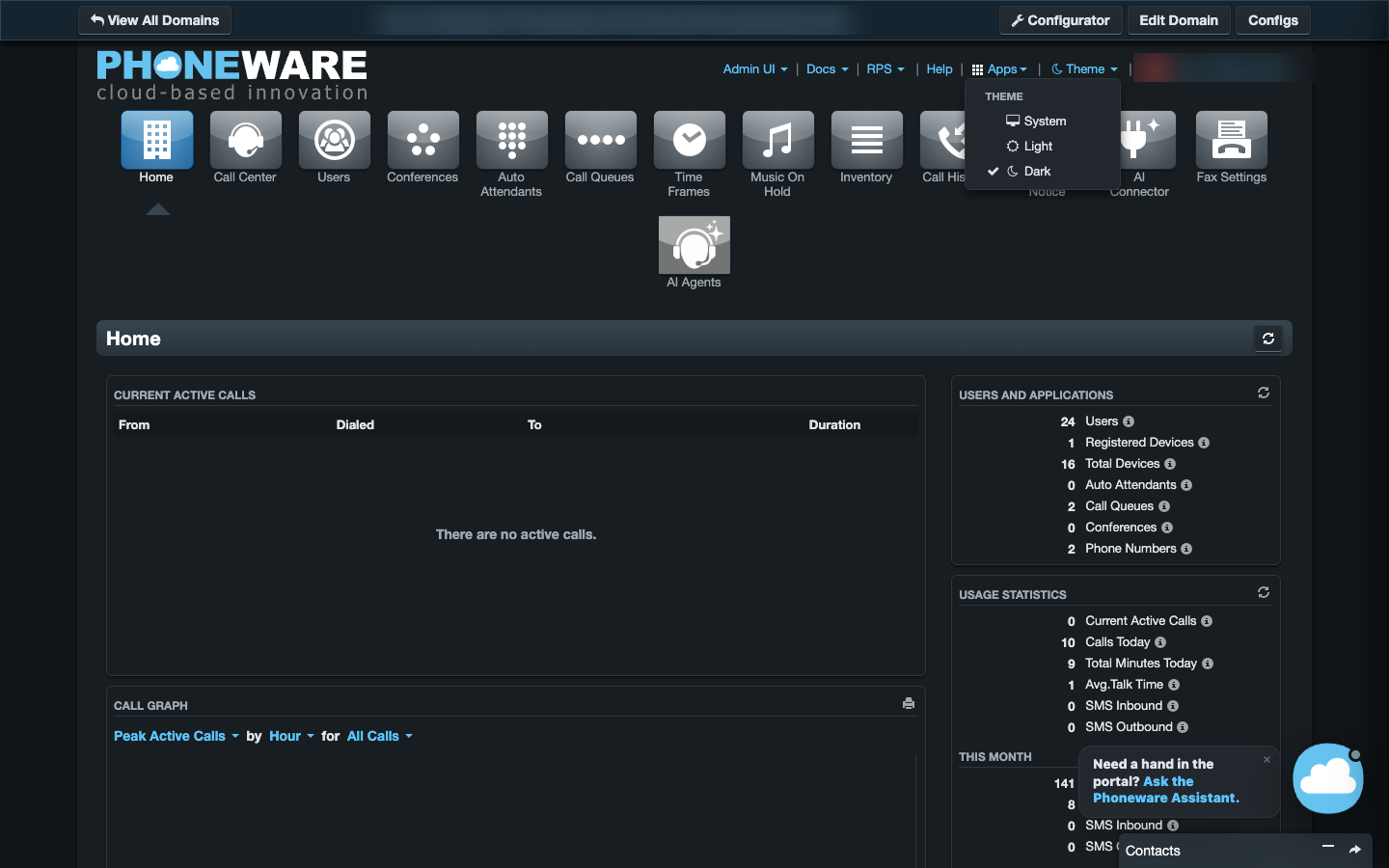
You will see a Theme menu in the portal’s top toolbar alongside your app menus. Clicking it gives you three options:
- System: Matches your computer or tablet’s appearance settings automatically. When your device switches to dark mode in the evening, the portal switches with it live.
- Light: Locks the portal to standard light mode regardless of what your computer is set to.
- Dark: Keeps the portal dark day and night.
Your choice is remembered in your browser, so your preference stays in place every time you return.
What you can do
Work across every native portal page
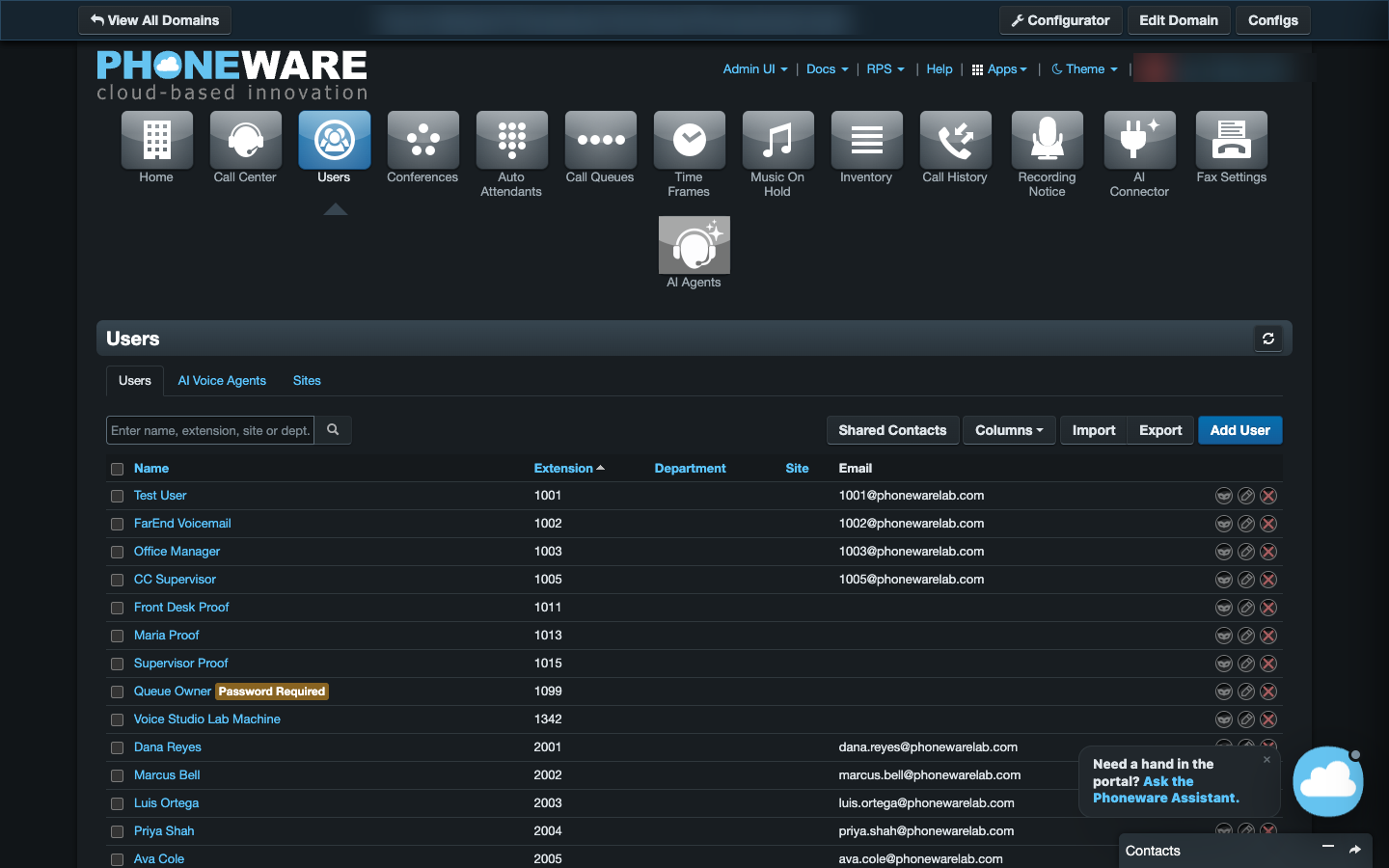
The dark theme covers every core portal view: Home, Users, Conferences, Auto Attendants, Call Queues, Time Frames, Music on Hold, and Inventory. Grids, buttons, search filters, and status badges adjust together, with readable high-contrast text.
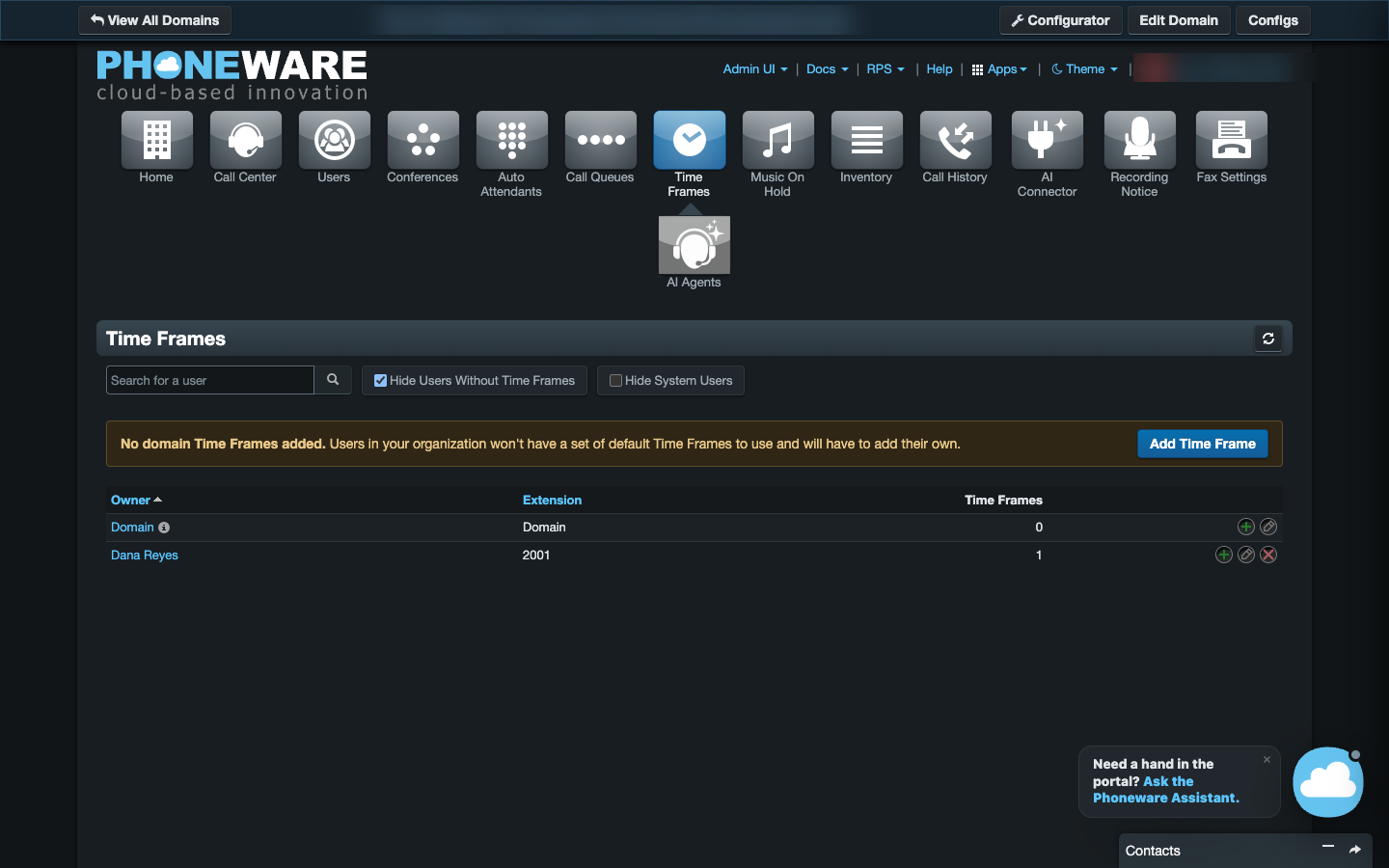
Keep Phoneware add-ons in sync
If your team uses Phoneware add-ons, they go dark right along with the portal. You do not get thrown back into a bright white screen when you open a modal or side drawer.
The dark theme covers:
- App Configurator: Manage app access in a dark matrix view.
- Advanced Filter: Filter call history without harsh glare.
- Enhanced Reports & Phoneware Assistant: Review queue metrics and ask the assistant questions in a matched dark layout.
- Call tools: Recording Notice, AI Connector, Download Recordings, and Voicemail notification setup.
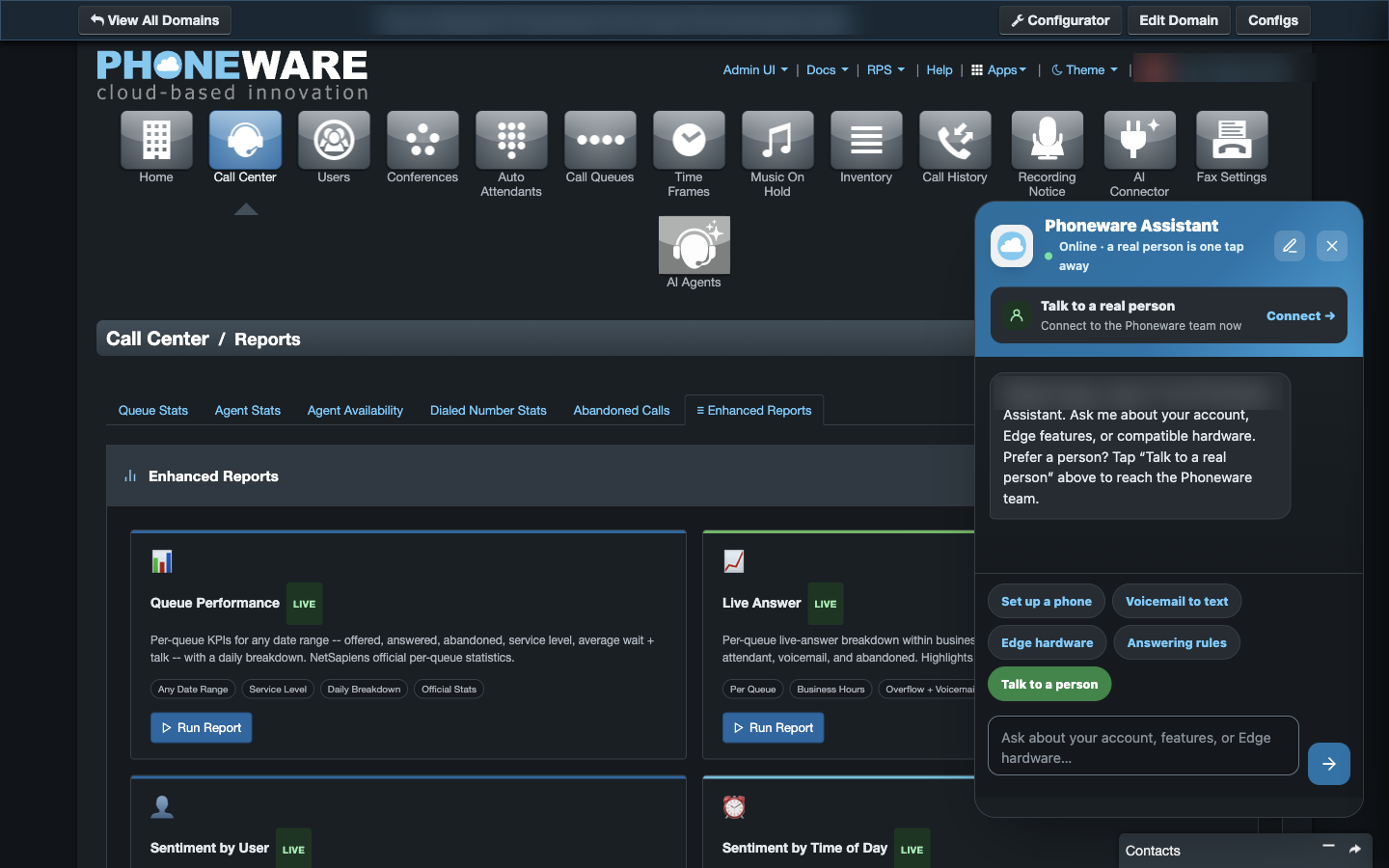
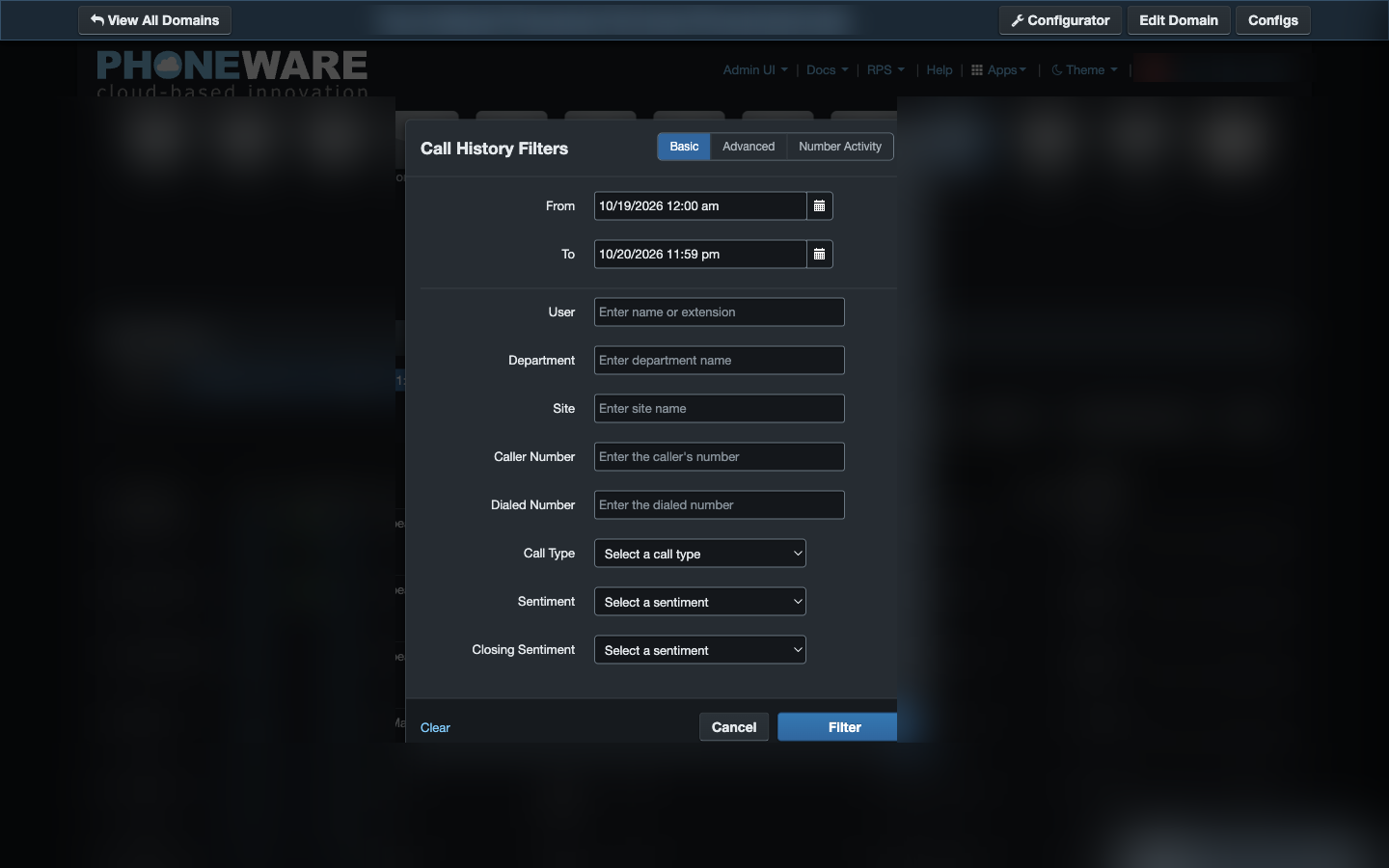
Keep real colors on logos, photos, and charts
A common issue with browser dark mode tools is that they invert everything, turning photos into negatives and washing out charts.
Our theme recolors backgrounds, table rows, and borders while leaving images, user avatars, and company logos in their true colors. Status badges keep their green, amber, and red indicators, and performance charts keep their original hues.
When you need to print a call log or configuration summary for your files, print styles keep the page light so you do not waste printer ink. Once dark mode is on, moving between pages stays dark from the first frame instead of flashing white while each page loads.
Where it helps
- Evening dispatch and on-call rotations. Managing after-hours coverage or monitoring queue stats without flooding a dim room with white light.
- All-day administrative work. Office managers and supervisors who manage time frames, adjust user routing, or audit extensions throughout the day.
- Multi-monitor setups. If your workstation runs dark editing tools, communication apps, and browser windows, the portal blends in naturally beside them.
- Automatic day-to-night transitions. Letting the System setting handle the switch automatically when the sun sets, without clicking a setting manually.
Availability
Dark mode is available to everyone in Manager Portal.
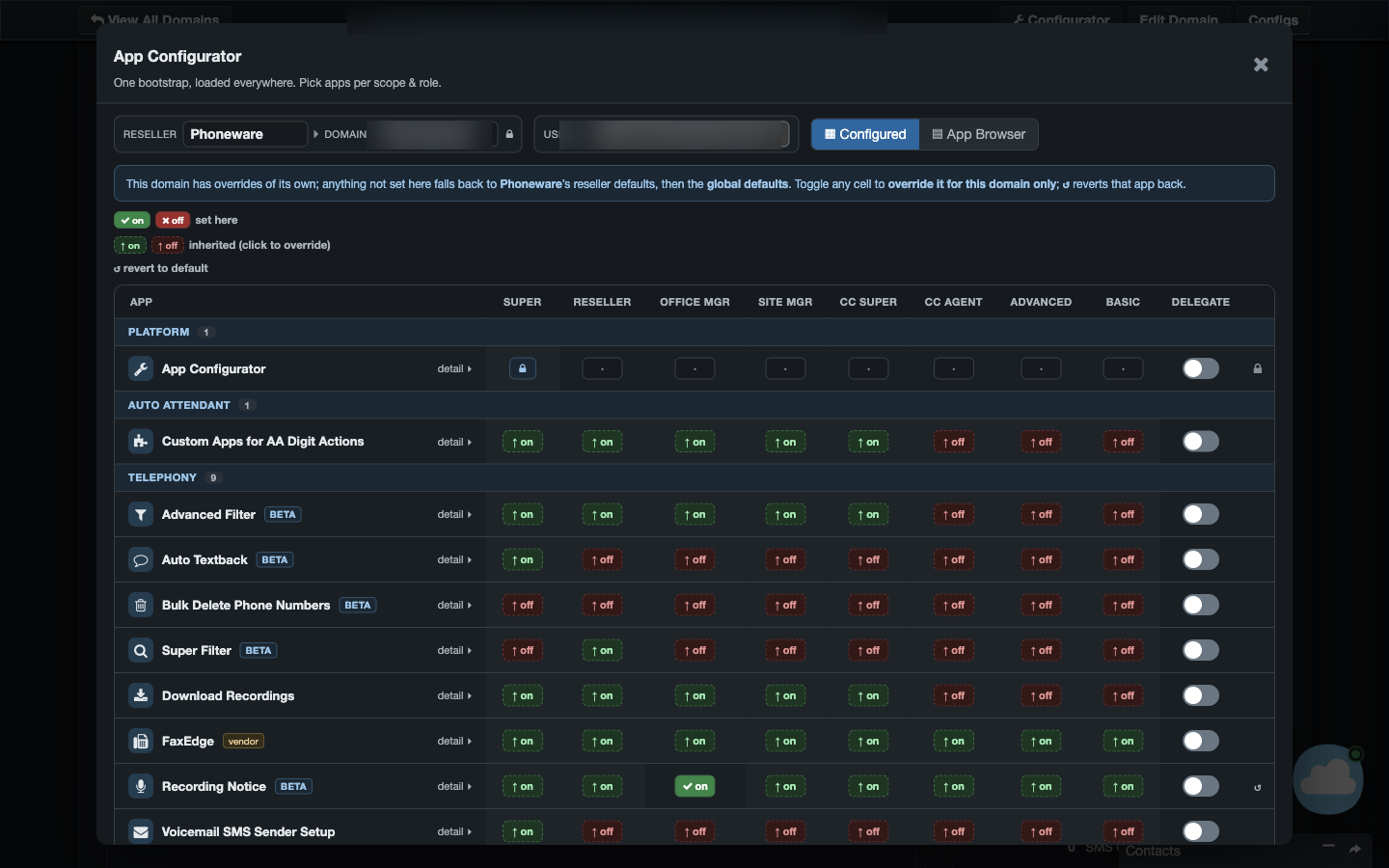
It’s in your Manager Portal today. Call or text us at 602·445·7777.